SQL and results
Writing SQL
Completion, formatting, lint and quick fixes, jumping to a CTE, GitHub Copilot suggestions, and how query tabs are saved.
A query tab is a SQL editor that knows the database it runs on. It completes table and column names from that database, formats and checks your SQL in its dialect, and keeps your scratch queries for you. How to run what you write is in Running queries.
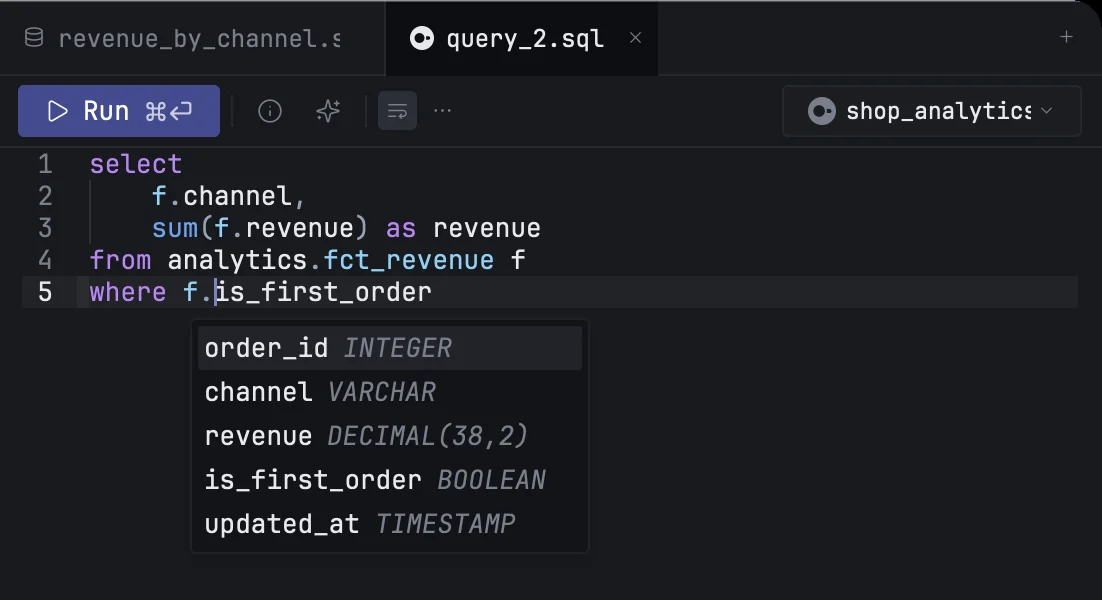
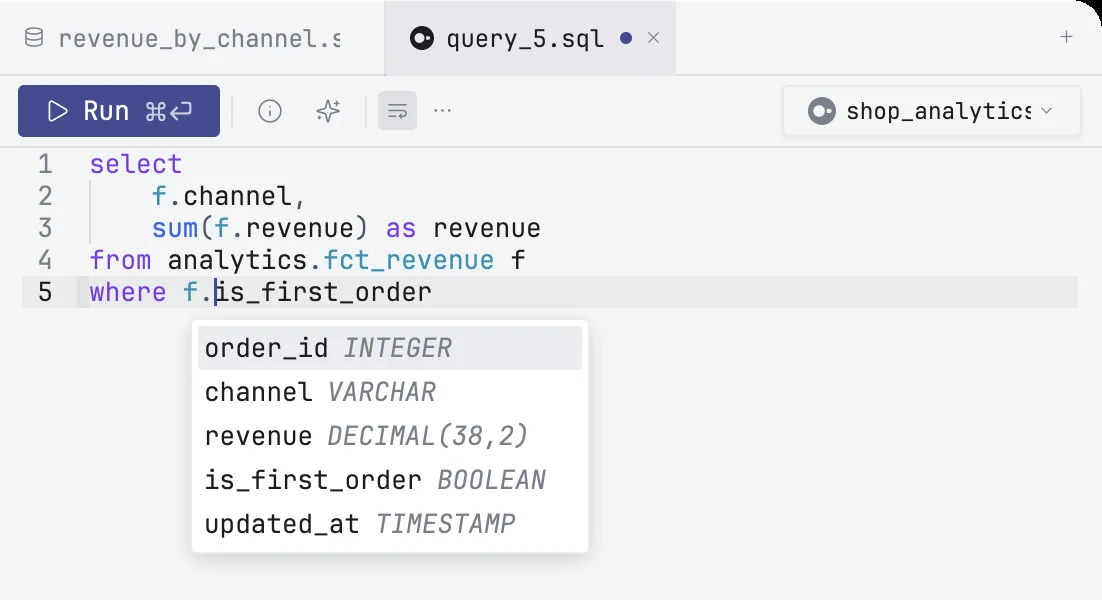
Completion
The list opens by itself as you type a name or a .; ⌃Space or ⌥Esc opens it without typing. ⌥Esc is there because macOS takes ⌃Space to switch keyboard layouts when you have more than one. The list offers what fits where the caret is:
| Where you are | What it offers |
|---|---|
| the start of a statement | select, with, insert and the other statement keywords |
after from or join |
schemas and tables |
| a column position | columns, and functions |
after alias. |
the columns of that table, from the first . |
after a CTE's name and . |
the columns the CTE returns |
after schema. |
the tables in that schema |
A table written without its schema, such as from orders o, is looked up the way the database looks it up: in the connection's default schema, or in the one you switched to with SET search_path, DuckDB's SET schema or MySQL's USE.
When you type o. and nothing is called o yet, the list offers to add a matching table to the from clause with that alias, such as Add `orders o` to FROM.
Functions are those of the tab's own database: a MySQL tab is offered MySQL's functions, a Snowflake tab Snowflake's, and so on.
Items you pick often move up the list. Keywords come in the case the formatter uses, lowercase unless you change it.
| Key | Does |
|---|---|
| ↑ ↓ | move through the list |
| ↩ | insert the item |
| Esc | close the list |
To accept with ⇥ as well, or with ⇥ only, change Accept Completions With in Settings → Editor.
Table and column names come from the schema shown in the Databases panel. The first time you type on a connection whose schema has not been loaded, mxds loads it in the background, and names appear a keystroke or two later. After a table changes, refresh the schema with ⌘R.
Formatting
Format in the toolbar, or ⌥⇧F, formats the selection, or the whole tab when nothing is selected. Formatting follows the SQL dialect of the tab's database.
Settings → SQL Formatter sets the indent, the maximum line length and the rules, and can format for you:
- Format on Run — format before each run.
- Format on Save — format when you press ⌘S.
The defaults write keywords, names and functions in lowercase and put commas at the end of lines. Reset to recommended defaults brings them back. An .editorconfig file in the project sets the indent for its files, and the formatter follows it.
Problems and quick fixes
mxds checks the SQL as you type and underlines what it finds. Hover an underline to read the message.
It checks two kinds of things:
- Style and syntax — the same rules the formatter uses, in the tab's dialect. Syntax errors are errors; style rules are warnings.
- Names — an alias that is not defined, a column that no table in the query has, and a column name that could belong to more than one table. These need the schema of the connection.
All of them are listed in the Problems tab under the editor. Filter it by errors, warnings or info, or type in Filter…; click a problem to jump to its line. When there are any, the status bar shows their count; click it to open Problems.
Many style problems can be fixed for you. Put the caret on the underline and press ⌘., or click Fix next to the problem in the Problems tab. ⌥↩, or right-click → Show Code Actions, lists the fixes under the caret and Format SQL.
To stop checking as you type, turn off Lint on type in Settings → SQL Formatter. Each rule can be turned on or off on the same page.
Jumping to a definition
⌘-click a table alias to jump to the table it names in the from clause, or a CTE's name to jump to where the CTE is defined. Right-click → Go to Definition does the same.
The Schema panel in the sidebar shows the documentation of the table under the caret.
GitHub Copilot
Copilot can suggest the rest of a line or a whole query as grey text. It is off until you turn it on, and needs your own GitHub Copilot subscription.
- Open Settings → Copilot and turn on Enable Copilot. mxds downloads the Copilot language server the first time.
- Click Sign In. A dialog shows a code; enter it on the GitHub page that opens.
Once signed in, a Copilot icon in the status bar shows whether it is working. Suggestions appear when you pause typing.
| Key | Does |
|---|---|
| ⇥ | accept the suggestion |
| ⌥→ | accept the next word |
| ⌥] ⌥[ | show the next or previous suggestion |
| Esc | dismiss it |
With Send database schema context on, Copilot also gets the names of your tables and columns, so its suggestions use them. Data from your tables is never sent.
Copilot also works in Markdown, Python and other text files opened in the editor.
The tab's database
The connection menu at the right of the toolbar sets more than where the query runs. Completion, the dialect used for formatting and lint, and the list of functions all follow it, and change when you pick another connection. See Running queries for how a new tab picks its connection.
Scratch tabs and saving
⌘T opens a new query tab named query_1.sql, query_2.sql and so on. Scratch tabs are saved by mxds a few seconds after you stop typing, inside the project's .mxds folder, and come back when you open the project again. You never need to save them.
A .sql file you opened from the project is saved with ⌘S. Closing it with unsaved changes asks first.
When you close a scratch tab, its query is moved to the Trash the next time the project opens. ⌘⇧T reopens the last closed tabs, up to ten, until you quit mxds. Queries you ran stay in History either way.
Other editing keys
| Keys | Does |
|---|---|
| ⌘/ | comment or uncomment lines |
| ⌘F | find, with match case and replace |
| ⇥ ⇧⇥ | indent or outdent the selected lines |
| ⌘Z ⌘⇧Z | undo, redo |
The toolbar turns soft wrap and visible whitespace on and off. Font size, line height, tab width and tabs or spaces are in Settings → Editor.