Git
Git changes
Review your uncommitted changes, undo parts of them, commit, sync with the remote, switch branches and read the history.
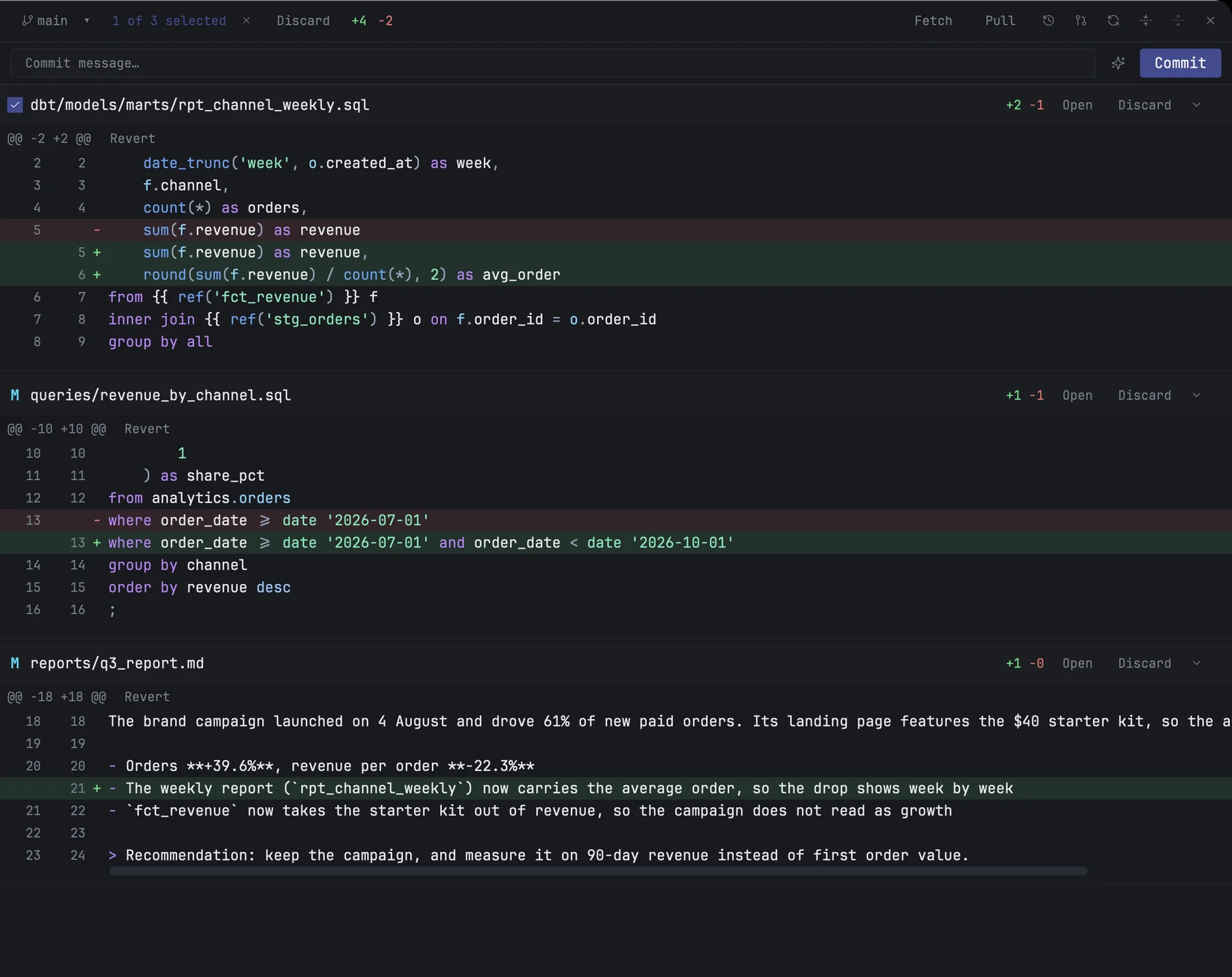
⌘G opens the git view over the editor and terminal: every file you changed, as a live diff, with a commit box above it. Press ⌘G or Esc to close it. mxds runs the git installed on your Mac, so your configuration, hooks and credentials apply.
Your changes
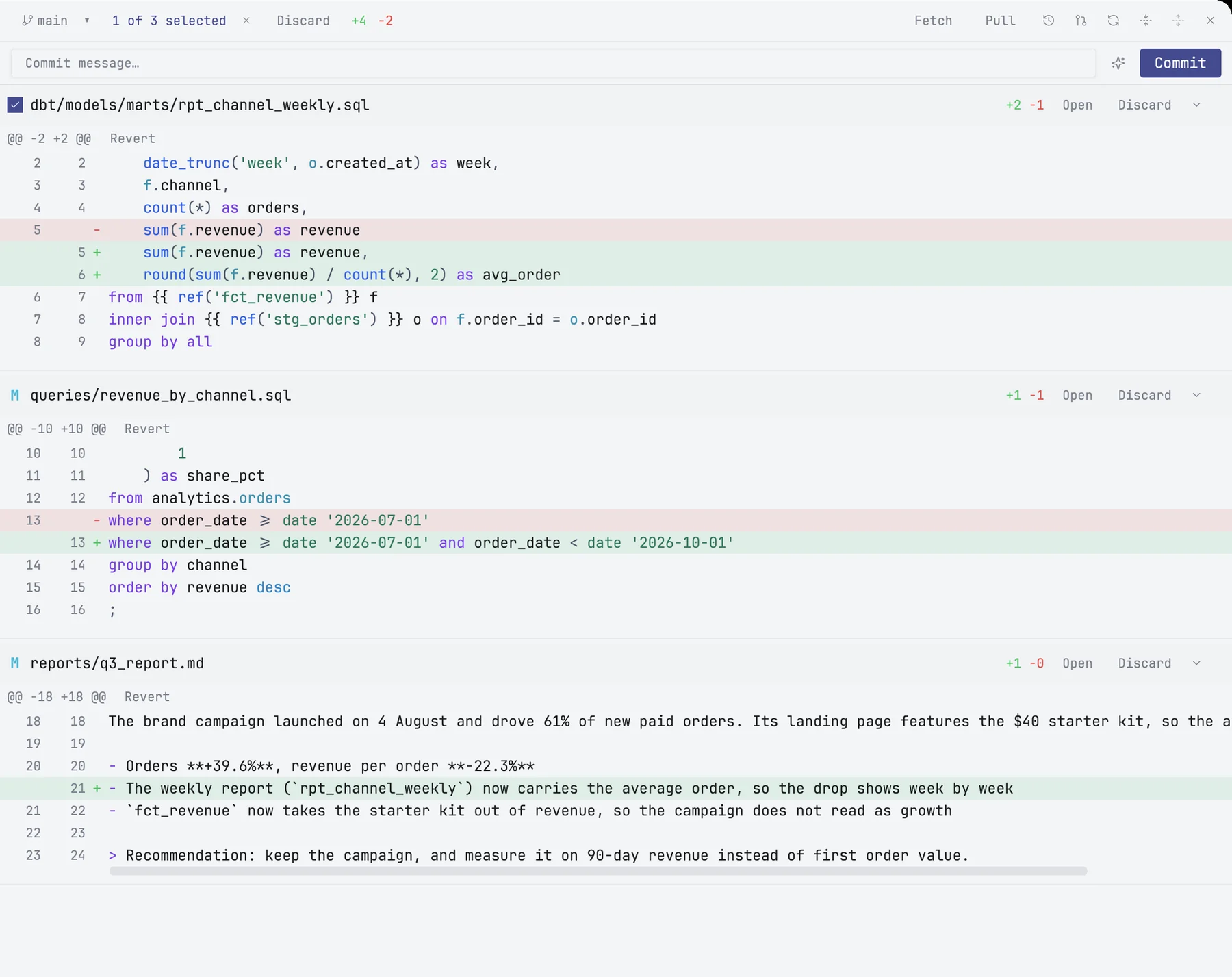
Each changed file is a card with its path, the number of added and removed lines, and its diff with line numbers. The list updates as files change on disk, and the file changed most recently comes first. The header shows the branch, how many files changed and the total lines added and removed.
- Collapse or expand a card with the arrow in its header, or all of them with the two buttons on the right of the git view's header.
- Open in a card's header opens the file in the editor. Double-click a line of the diff to open the file at that line.
- Binary files show only their header. Lock files and minified scripts start collapsed.
- Large changes — over 1,000 lines — show a placeholder with a Show large diff button, so one generated file does not push the rest out of view. A file too large for an exact diff gets an approximate one, and its first hunk says so.
Undoing changes
Revert on a hunk's header puts that part of the file back as it was in the last commit. Discard in a card's header does the same for the whole file, after you confirm. Both leave a notice with Undo, which brings the change back. A revert keeps the file's permissions, so a script stays executable, and writes through a symbolic link rather than replacing it.
To discard several files at once, tick them and use Discard in the header.
Committing
Type a message in Commit message… and press Commit.
- Nothing ticked commits every change, new files included.
- Some files ticked commits only those files. Click a card's tick box to pick a file; ⇧-click picks a range. Anything you staged yourself outside mxds stays staged and is not included.
The header then shows 2 of 7 selected. The ticks are mxds's own: they do not stage anything in git until you commit. If a hook rejects the commit, its message appears in the error notice.
The sparkle button next to the message writes one for you from the diff of what you are committing. It runs a command-line AI tool, Claude Code by default; choose Codex CLI, GitHub Copilot CLI or your own command, and edit the instruction it gets, in Settings › Git.
Fetch, pull and push
| Button | Does |
|---|---|
| Fetch | downloads remote changes without touching your branch, and says how many commits there are to pull |
| Pull | pulls the upstream branch and merges it |
| Push n | appears when your branch is n commits ahead of its upstream |
The same actions, and Git Refresh, are in the command palette, where they run without opening the git view.
Switching branches
Click the branch name in the status bar, or the branch button in the git view's header. The menu lists your local branches with the current one marked; type to filter, click one to switch. If git refuses, for example because your changes would be overwritten, its message is shown and nothing changes.
Clicking the change counts next to the branch in the status bar opens the git view.
History
The clock button in the header opens the commit history above the cards: message, author, date and time, commit hash and lines changed, with lines showing how branches split and merge. More commits load as you scroll. Click a commit to see its changes in the cards below, read-only; drag the divider to give either part more room. Click a hash to copy it.
Refresh in the header reads git again: the changes, the history and pull requests.