Notebooks
SQL cells
Querying your databases from a notebook with %%sql cells, choosing the connection, and passing Python values into the query.
A SQL cell runs on one of your connections, not in Python, and shows the result as a table under the cell. In the file it is a code cell whose first line is %%sql:
%%sql
select status, count(*) as orders
from orders
group by status
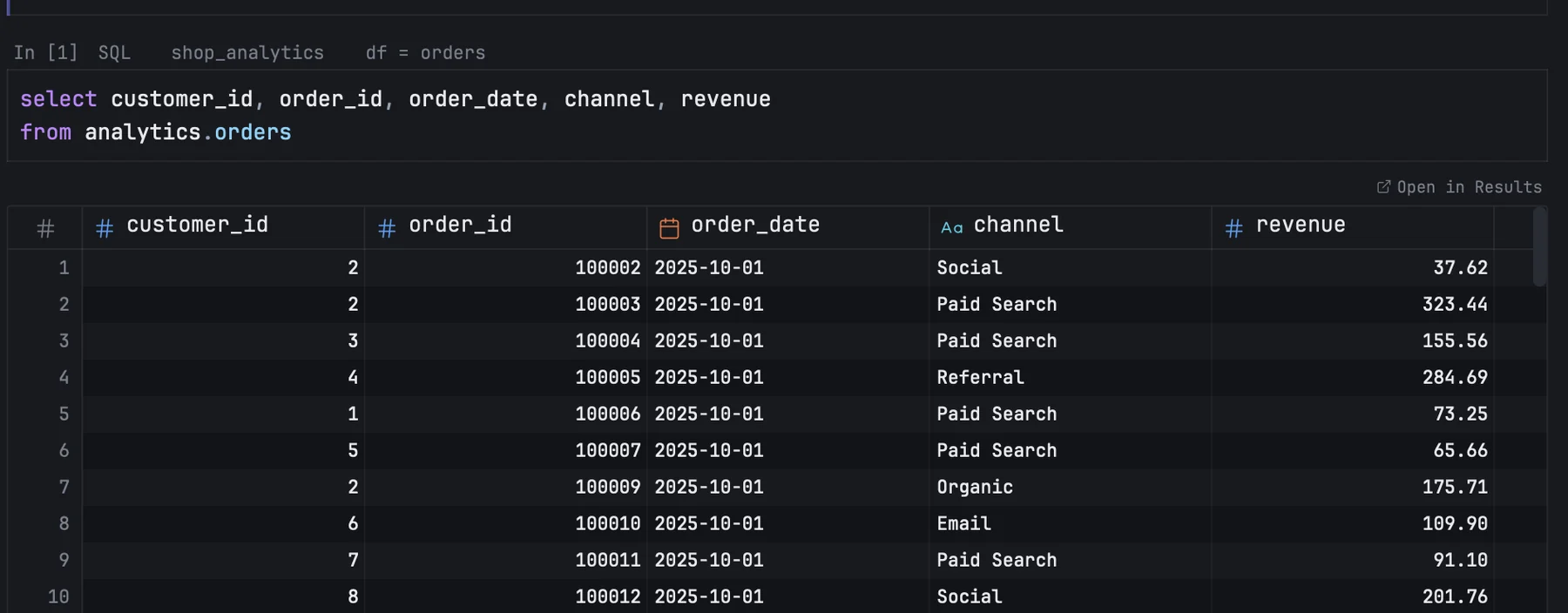
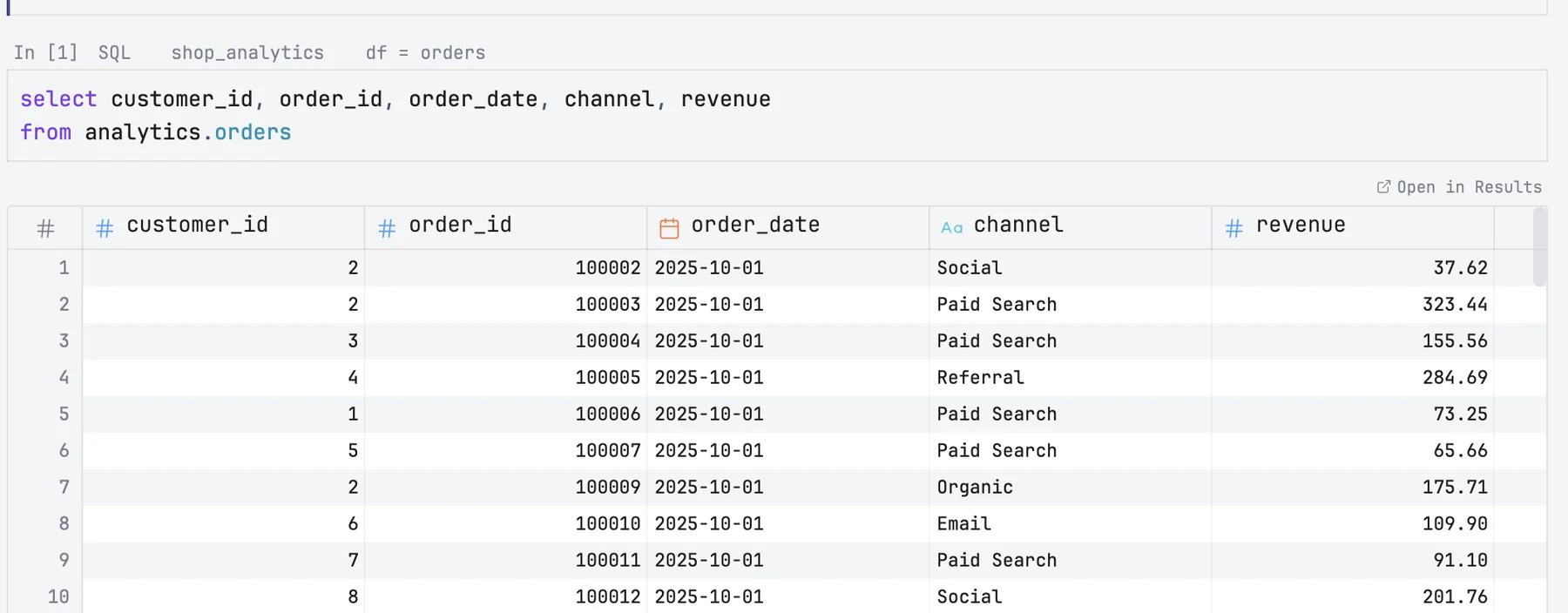
Making a SQL cell
Choose SQL in the type menu on the line above a cell. Or type %%sql alone on the first line of a Python cell, the Jupyter way: once the caret leaves that line, the cell becomes SQL.
The cell then shows only the query. The %%sql line stays in the file, so the notebook remains a valid Jupyter notebook, but it is not on screen; line numbers start at the query's first line, which is also the line a database error counts from. The query is highlighted as SQL, and completion offers the schemas, tables, columns and functions of the cell's connection, as in a query tab.
%sql alone on the first line works too, the way Databricks notebooks write it. Nothing else may share the magic line: %%sql select 1 on one line is treated as Python.
Choosing the connection
The line above the cell names the database it runs on. Click the name to choose another: mxds, the built-in DuckDB, is first, then every connection you saved. A new SQL cell runs on mxds.
The choice is saved in the notebook with both the connection's name and its internal id, so renaming the connection does not break the cell. When the notebook is opened on another Mac, the cell finds the connection by name. The name above the cell tells you how that went:
| It shows | Meaning |
|---|---|
| the connection's name | found |
| name — by name | found by name only. Running the cell saves the connection's id for next time |
| name — N connections match | several connections have that name. Pick one; mxds does not guess |
| not found: … | no connection has that name. Pick one or add it in Settings |
Names must match exactly, including capital letters.
Running
SQL cells run in the notebook's order along with the Python cells, one at a time, with the same Run commands and shortcuts. A SQL cell still needs the notebook's kernel, which gives it its In [n] number; Run starts the kernel if it is not running.
- The result shows in a grid inside the cell, 25 rows at a time as you scroll, with the row and column count and how long it took below. Every row is kept, with no limit.
- Open in Results above the grid opens the whole result in the results pane, with the column histograms, sorting and export described in Reading results.
- Statements that change data, such as
insertorcreate table, report the number of rows affected. A table created on mxds can be used by later cells and appears in the Databases panel. - One statement per cell. A cell with several statements is refused; split it into cells.
- Stop in the toolbar cancels the query on the database. Nothing from the stopped run is kept.
Errors appear in the cell's output the way Python errors do, with the database's own message.
Python values in a query
Write :name to put the value of a Python variable into the query:
%%sql
select * from orders
where country = :country and created_at >= :since
mxds reads the variables from the kernel just before the query is sent, and writes each value into the SQL text:
| Python value | Becomes |
|---|---|
None |
NULL |
True, False |
TRUE, FALSE |
a number or Decimal |
the number |
| a string | 'text', quoted the way the cell's database reads strings, so a ' or a \ inside the value cannot end the string early |
| a date or datetime | the date as a quoted string |
| a list or tuple | (a, b, c), for in :ids |
Other values, such as a dict, a NumPy array or a DataFrame, are refused with a message saying so, as are NaN and infinity. A name the kernel does not know stops the cell before anything reaches the database.
To put a table or column name into the query, write {{name}}. The variable must hold a string that is a plain identifier, with up to two dots, such as analytics.orders. It is inserted without quotes.
:name inside a string literal, a comment or a :: cast is left alone.
Results in Python
A SQL cell can also leave its result in a Python variable, as a pandas DataFrame by default, or as a polars DataFrame or an Arrow table. The kernel needs pyarrow installed, and pandas or polars for those formats.
Beside the connection, the line above the cell reads → DataFrame while the cell hands nothing to Python, and df = orders once it does. Click it and type the variable name right there; ↩, Esc or a click away keeps it. After the cell runs, its result is in the kernel under that name. Clear the name to stop handing the result over. A name Python cannot use, such as class or 1abc, is refused beside the field.
What the result becomes — pandas, polars or arrow — is one choice for the whole notebook, made with df: pandas in the toolbar.
Both choices are saved in the notebook, so it runs the same on another Mac. A notebook from DataSpell that names a result variable keeps working.
If polars is not installed, the cell says so and makes a pandas DataFrame instead. When a result handed to Python has more than 1,000,000 rows, the cell leaves a note that they are now in the kernel's memory.
What is saved in the file
The notebook keeps a preview of each SQL cell's last result: the first 50 rows, with the real row and column count. When you open the notebook again, the preview is shown with preview from file under it until you run the cell. Error messages are saved too.
Other Jupyter tools show the preview as an ordinary table output. To run %%sql cells there you need a SQL extension for Jupyter, such as JupySQL.