SQL and results
Running queries
What Run executes, how a tab picks its database, stopping a query, and where results and errors appear.
Write SQL in a query tab and press Run or ⌘↩. The result appears under the editor and is kept in your query history.
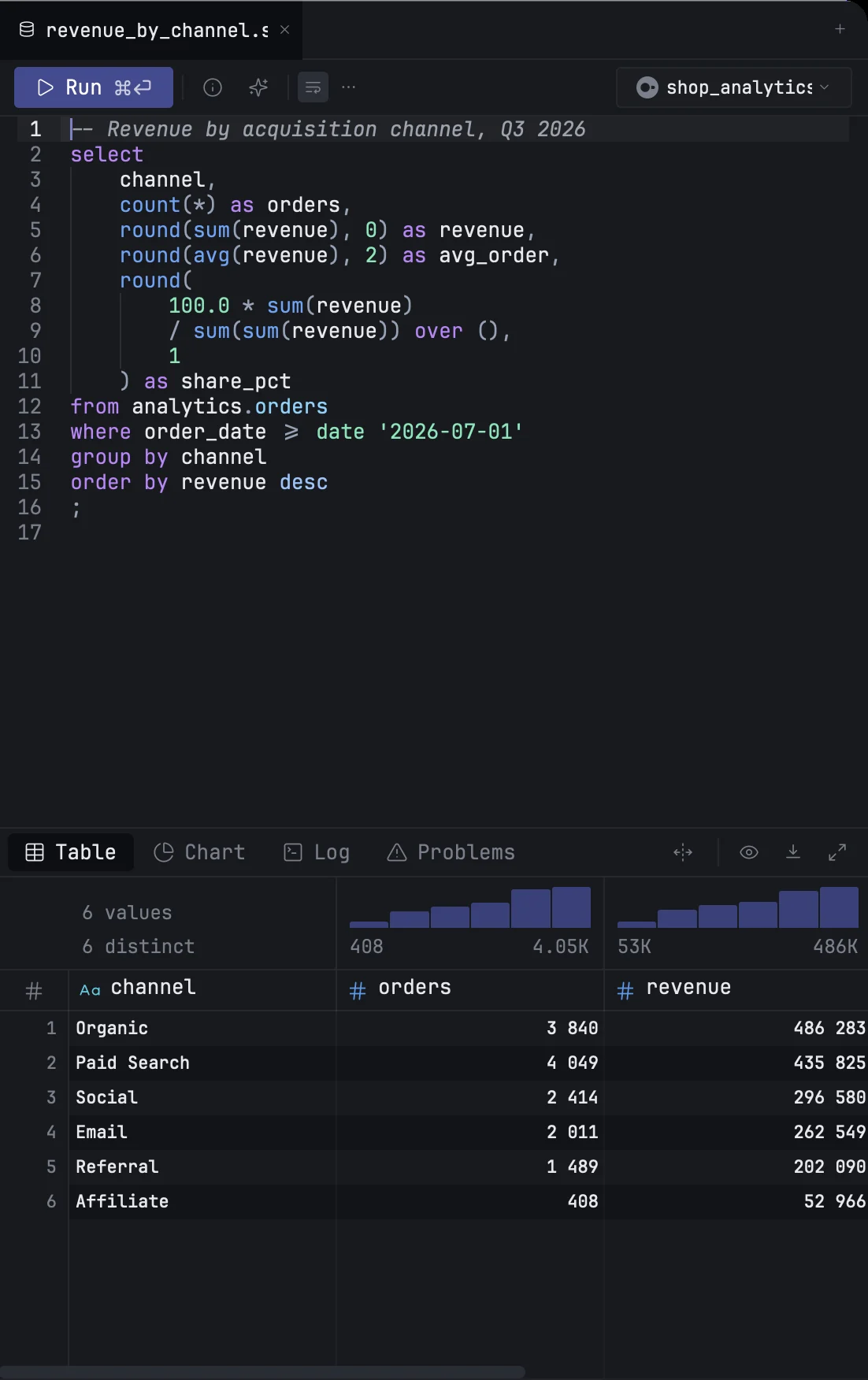
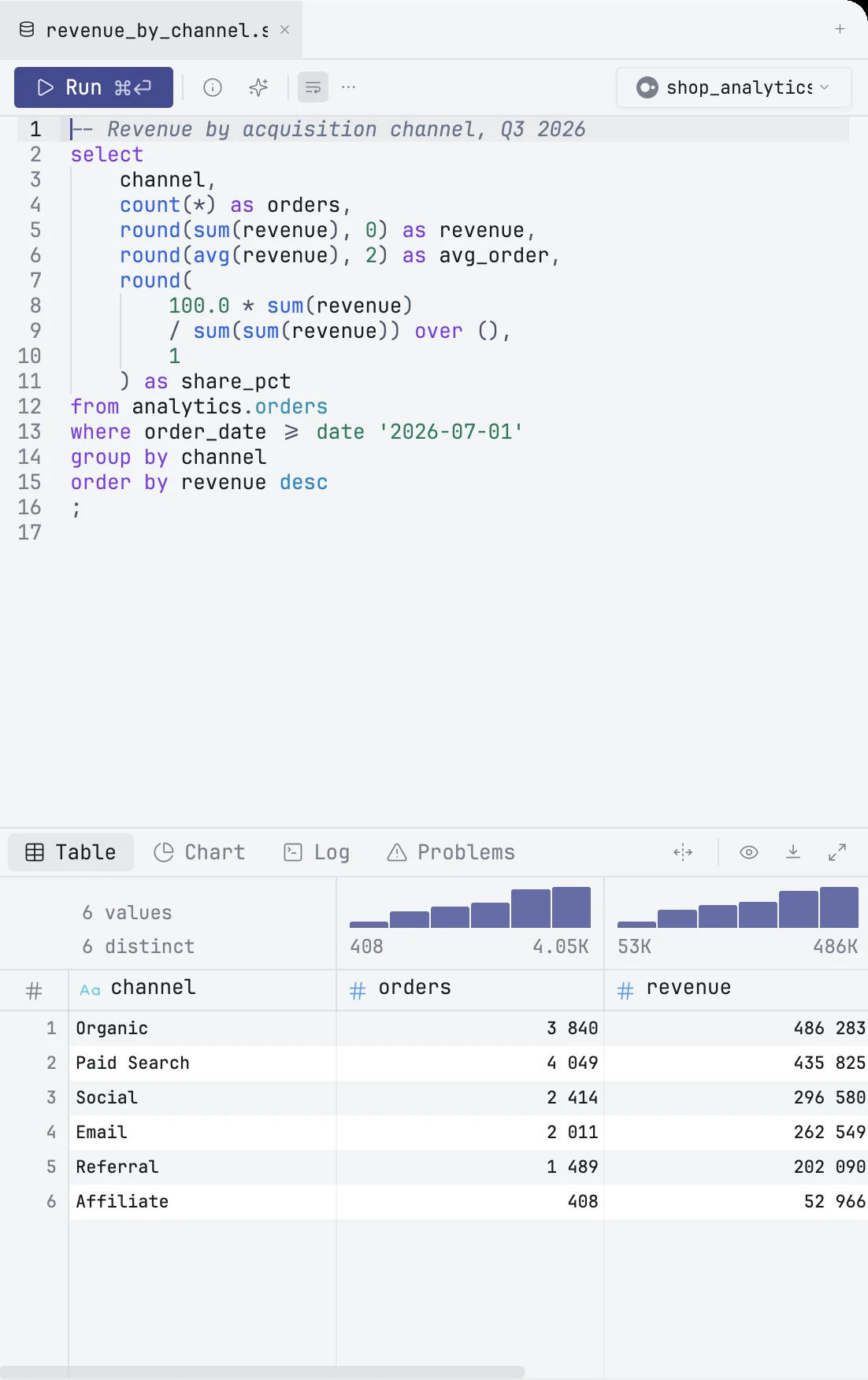
What Run runs
- A selection runs exactly as selected.
- One statement in the tab runs whole.
- Several statements in the tab: the one under the caret runs. Statements are separated by
;; a;inside a string or a comment does not count, and strings are read the way the tab's database reads them.
To check part of a long query, put the caret on a common table expression (with … as) and press ⌘⌥↩, or click the ▶ next to its name: mxds runs the query up to that step. Profile on the same line shows how many rows every step returns and how long it takes.
Choosing the database
The menu at the right of the toolbar sets which database the tab runs on. It lists mxds, a built-in DuckDB that needs no setup, then every connection you saved. A connection opens the first time a tab uses it; until it is ready, Run shows Connecting… and the query waits for it.
A new tab (⌘T) starts on the connection you have selected in the Databases panel, or on the current tab's connection when you are in the editor.
Stopping a query
While a query runs, Run turns into Stop with a timer. Click it or press Esc. Stopping affects only that tab.
Results
Rows arrive as the database sends them and are kept in a local store, so a large result does not slow the window down. There is no automatic row limit: the table pages through the result, 10,000 rows a page by default — the page size is in the menu at the bottom of the table.
Above each column is a short summary: number and date columns get a small histogram with their range, text columns the number of distinct values. Select cells to see their sum, average and count in the status bar; Reading results has the rest.
When something goes wrong
An error replaces the table with a card that shows the database's message. Copy error puts it on the clipboard; Fix with AI sends it to the agent in your terminal. Errors are also listed in the Log tab.
Statements that change data and return no rows, such as create table or insert, report what they did in the Log tab.
Explain
Explain in the toolbar shows how the database plans to run the query, one plan step per row of the result.
History
Every query you run is saved to History (⌘Y) with its connection, how long it took and how many rows it returned, or its error if it failed. Explain is saved too. Double-click an entry to open it in a new tab on the same connection.