Agents
The terminal
The built-in terminal where your agents run, with tabs and splits, shells that survive quitting, suggestions from your history and comments on output.
The terminal in mxds is built on libghostty, the terminal engine of Ghostty, and drawn on the GPU like the rest of the window. Full-screen programs such as Claude Code, Codex, vim or htop work as they do in Ghostty, including modern keyboard protocols, true colour and emoji. Around that engine mxds adds what an agent workspace needs: tabs and splits, shells that keep running when you quit, suggestions from your history, and a way to comment on what an agent printed.
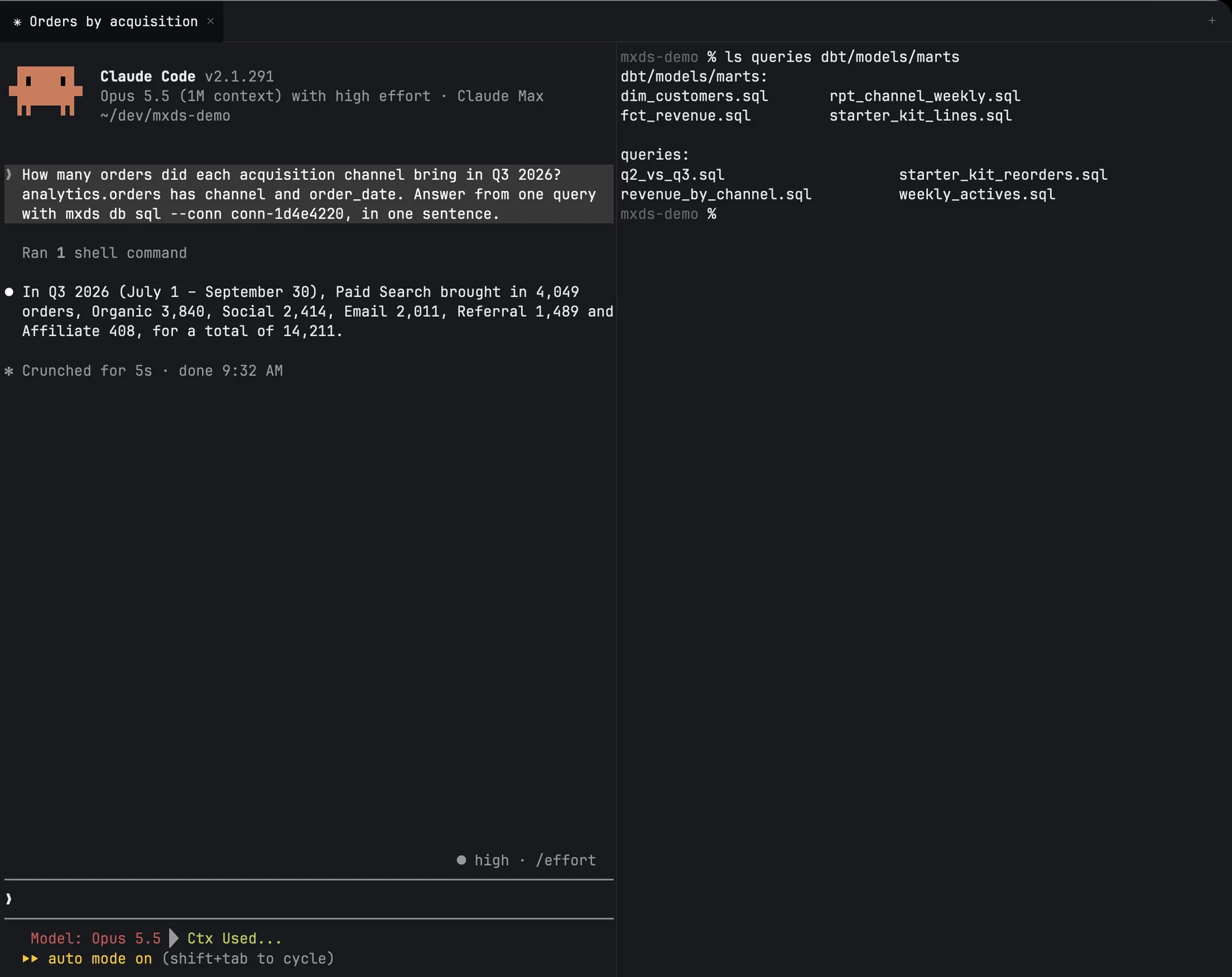
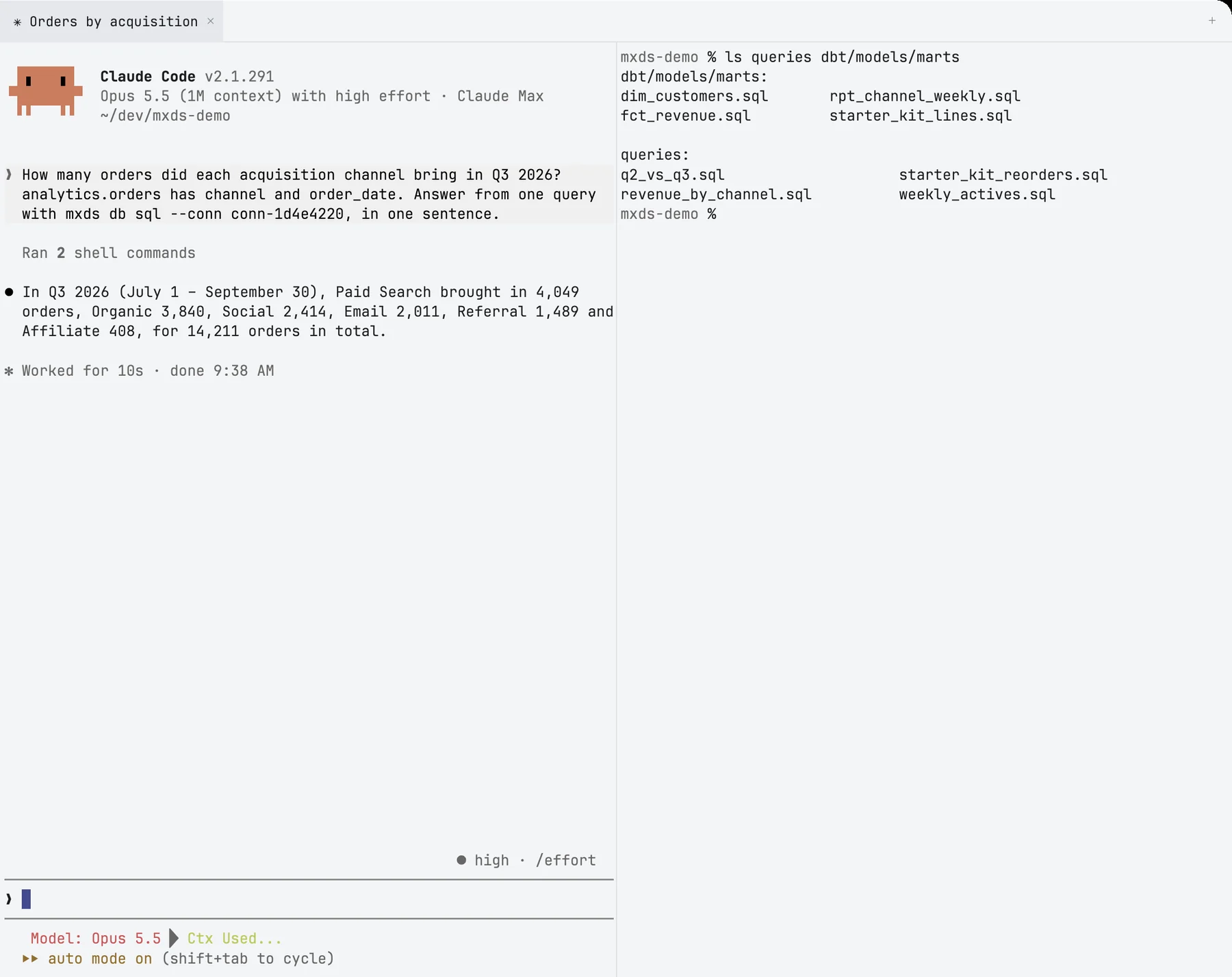
Tabs and splits
⌃` shows or hides the terminal. Its side of the window — left or right of the editor — is set in Settings → Appearance → Panel Arrangement.
| Action | Shortcut |
|---|---|
| New tab (while the terminal has focus) | ⌘T |
| Split right | ⌘D |
| Split down | ⌘⇧D |
| Move to the split on the left, right, above or below | ⌘⌥ and an arrow |
| Close the focused split, or the tab when it is the last one | ⌘W |
| Go to tab 1 to 9 | ⌘1 … ⌘9 |
| Next or previous tab | ⌃⇥, ⌃⇧⇥ |
The + at the end of the tab bar also opens a tab. A new tab starts in the folder open in the Files panel; a new split starts in the folder of the pane you split. Drag the line between splits to resize them.
A tab is called Terminal 1, Terminal 2 and so on until the program in it sets a title — Claude Code, for example, names it after the task. Hover a tab for its full title.
If a program is still running in a pane or tab you close, mxds asks first and names what will be stopped.
Sessions that survive quitting
Your shells keep running when you quit mxds, and even if it crashes. Next time you open mxds, every tab and split comes back attached to the same shell, with its scrollback and whatever was running — an agent in the middle of a task carries on.
Each pane keeps the last 10 MB of output, the same as Ghostty: about 8,900 rows.
Closing a pane or tab ends its shell for good. A restart of the Mac ends them all; the tabs come back as fresh shells in the folders they were in.
To turn this off, use Settings → Terminal → Sessions → Persist terminal sessions across restarts. The change applies to terminals opened after it.
Autosuggestions
As you type a command, mxds suggests the rest of it in grey, from commands you ran before — the newest match, preferring commands run in the current folder.
- ⇥ accepts the whole suggestion. When there is no suggestion, Tab goes to the shell as usual, so completion still works.
- Esc hides it until you type something else.
History is recorded from every mxds terminal. The first time, it starts from your existing shell history, so suggestions work from day one. Suggestions work in zsh and bash. Turn them off in Settings → Terminal → History → Command autosuggestions; history is still recorded.
Comments on output
Hold ⇧ and drag over text in a pane — an error, a diff, a plan an agent printed. A note box opens at the end of the selection. Type your comment and press ↩: the quoted lines and your note are typed into that pane's prompt, for you to send. More in Reviewing an agent's work.
Pasting images
Copy a screenshot and press ⌘V in a pane where Claude Code or Codex is running: the agent receives the image itself, as when you paste in its own terminal, and shows it as [Image #1]. If the clipboard holds a copied file rather than an image, its path is pasted.
Links and paths
Hold ⌘ to underline links, and ⌘-click to open:
- a web address — in your browser;
- a file path, absolute or relative to the shell's folder, with an optional
:line— in the mxds editor, at that line; - a folder — in Finder.
Copying and clearing
| Action | Shortcut |
|---|---|
| Copy the selection, or the whole screen when nothing is selected | ⌘C |
| Select all | ⌘A |
| Clear the screen and scrollback | ⌘K |
| Start or end of the line | ⌘←, ⌘→ |
| Delete to the start of the line | ⌘⌫ |
Double-click selects a word, triple-click a line. ⌥ works as Meta.
The context menu
Right-click in a pane for Copy, Paste, Split Right, Split Down, New Tab, Reset Terminal — which clears a pane left in a broken state — and Edit Terminal Config…, which opens the terminal settings.
Settings
Settings → Terminal:
| Setting | Default |
|---|---|
| Font Family | JetBrains Mono |
| Font Size | 13 |
| Font Weight | Light |
| Copy on Select | off |
| Persist terminal sessions across restarts | on |
| Command autosuggestions | on |
| Notify when commands finish | on |
| Only notify for commands longer than (seconds) | 5 |
A finished-command notification tells you how long the command took and its exit code if it failed; you are not notified about the terminal you are looking at. When the command was an agent such as claude, you get the agent's own notification instead, not both. Colours follow the app's theme.