Workspace
Command palette
One search box for files, tables, text in files, past queries and every action in the app.
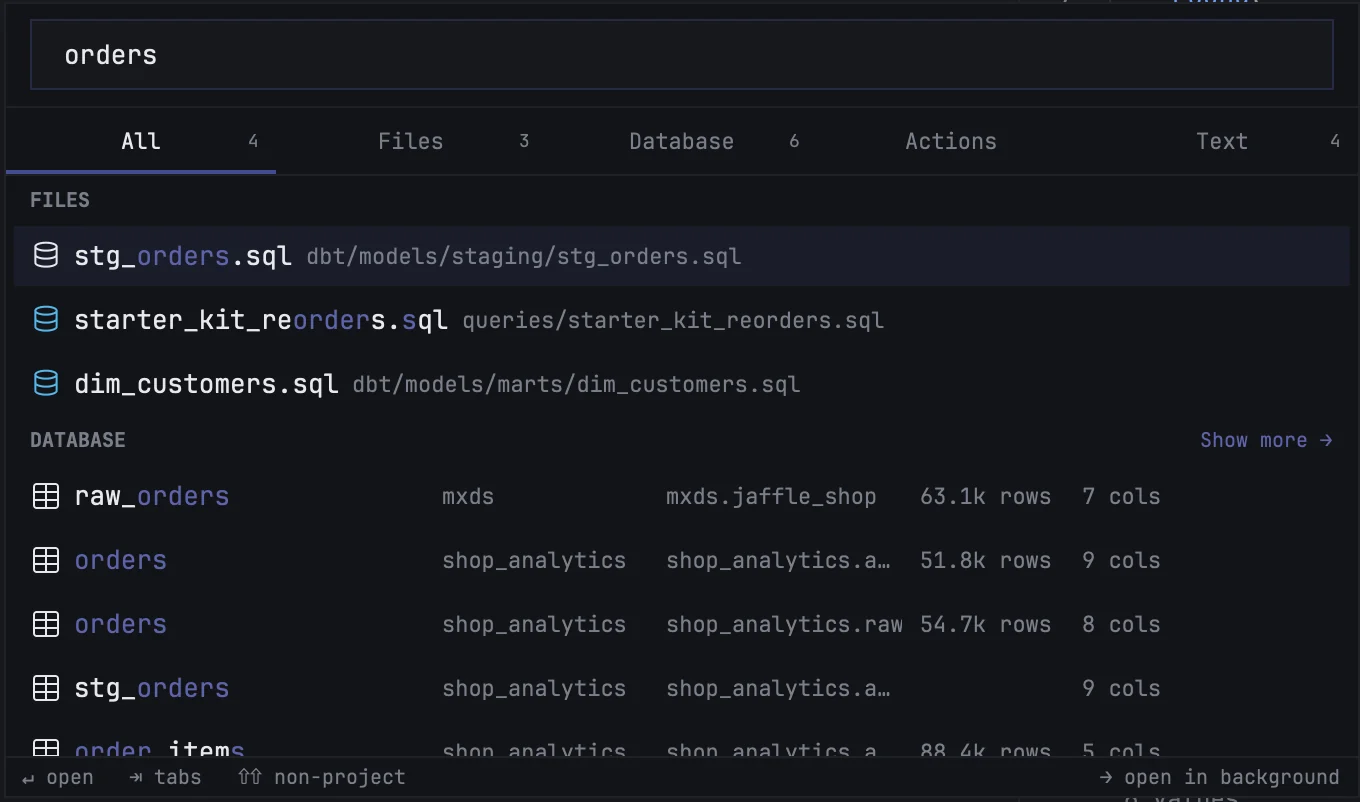
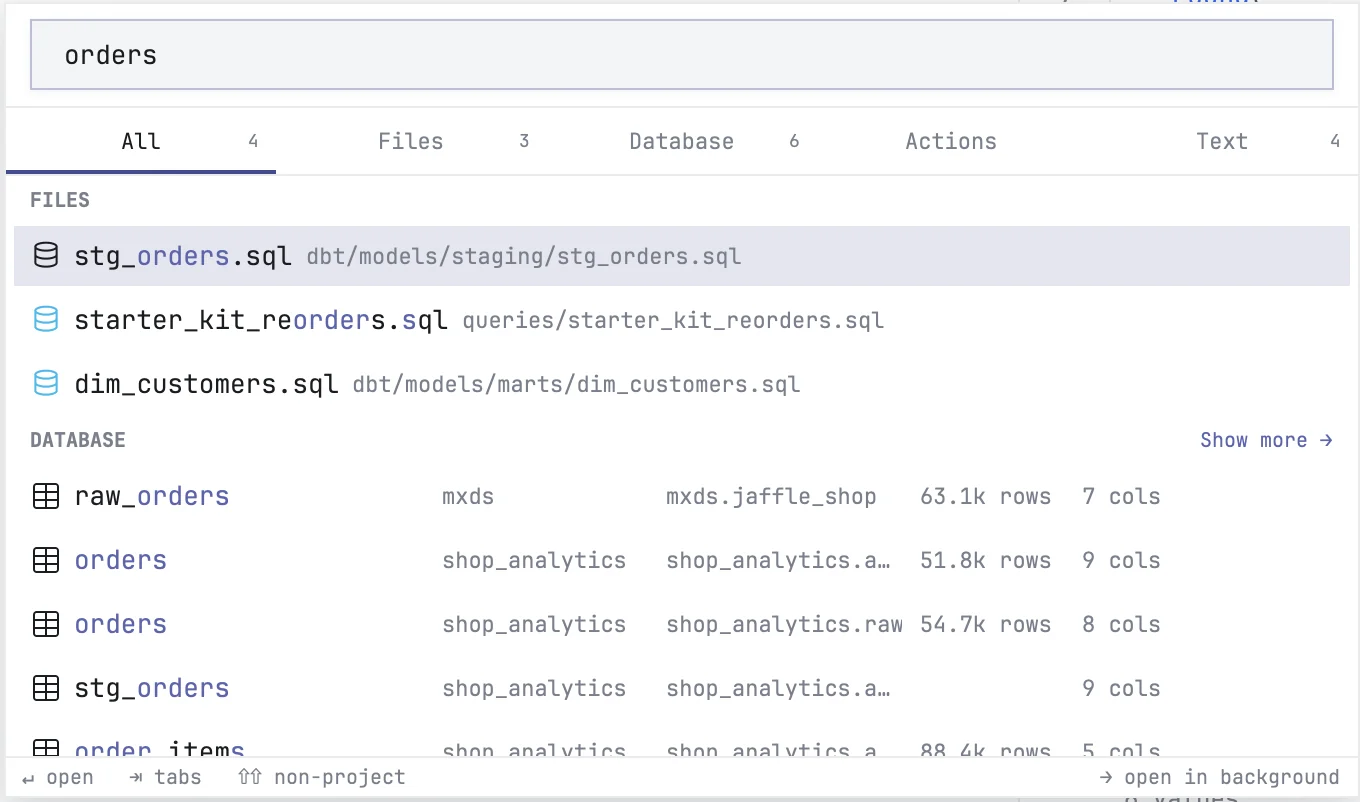
The command palette finds anything in the project and runs any action without leaving the keyboard. Press ⇧ twice to open it.
Opening it
| Shortcut | Opens on |
|---|---|
| ⇧ twice | All — everything at once |
| ⌘P | Files |
| ⌘⇧B | Database |
| ⌘⇧P | Actions |
| ⌘⇧F | Text |
Tab and ⇧Tab move between the tabs. Esc closes the palette; open it again within a minute and your query is still there.
With nothing typed, the palette shows what you used recently. As you type, results are ranked by how well they match and by how often you pick them.
The tabs
| Tab | Finds | ↩ does |
|---|---|---|
| All | the best few of every kind, in sections | the same as in the kind's own tab |
| Files | files in the project, by name or path | opens the file |
| Database | tables, views and columns of your connections, and the connections themselves | see below |
| Actions | every command in the app, with its shortcut | runs it |
| Text | lines inside the project's files | opens the file at that line |
In All, a section that has more results ends in Show more →, which switches to that kind's tab.
Files
Type part of a name or a path, such as stg_orders or models/staging. A file that is already open in a tab is marked; ↩ switches to that tab, ⌘↩ opens it in a new one. → opens the file without closing the palette, so you can open several in a row.
Files the project ignores, such as dotfiles and anything in .gitignore, are left out. Press ⇧ twice while the palette is open to include them; the bottom of the palette says Hidden files included.
Database
The Database tab searches every table mxds has loaded for your connections.
- A table or view — ↩ opens a new SQL tab with
select * fromthat table, limited to 1,000 rows, and runs it on the table's connection. - A column — ↩ types the column name at the caret in your current tab.
- A connection — ↩ makes it the active connection: agents use it when they don't name one, and its tables rank first here.
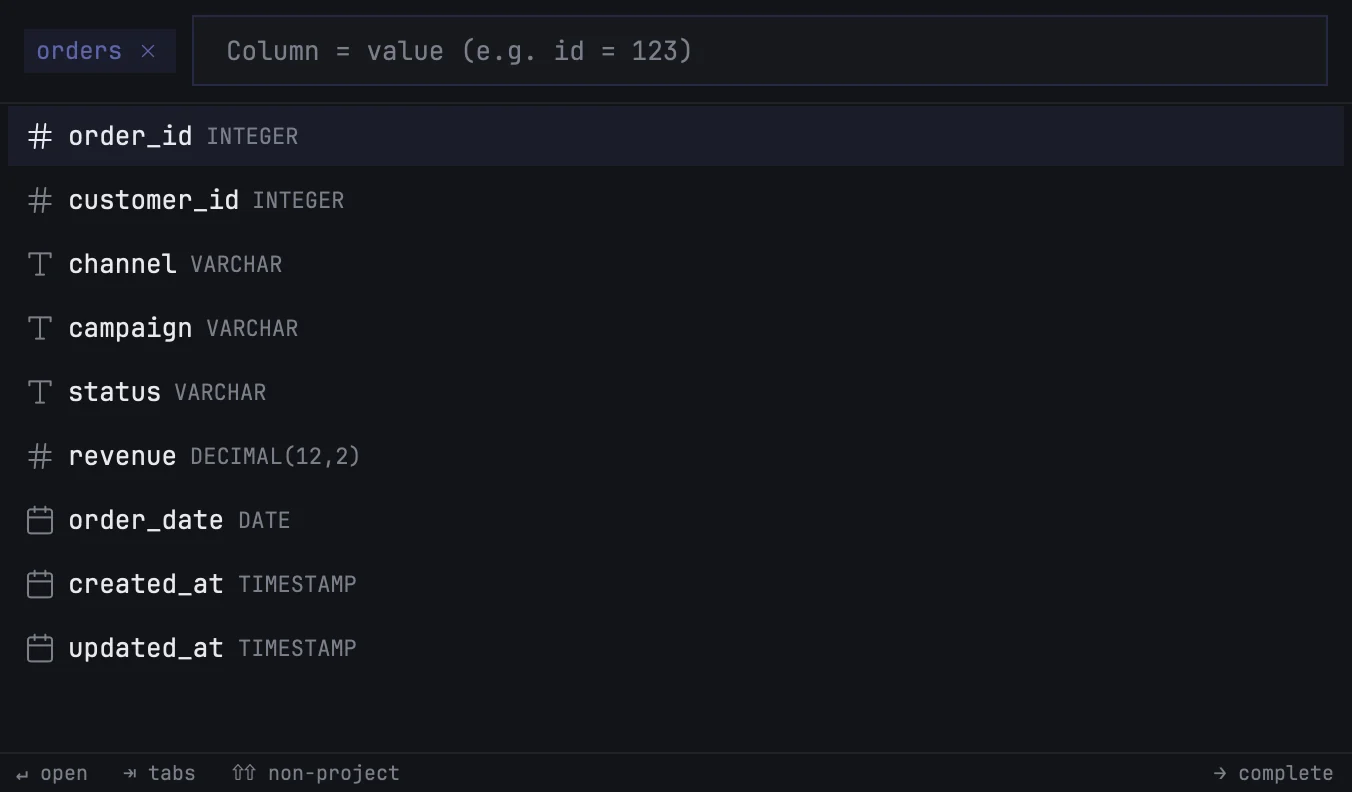
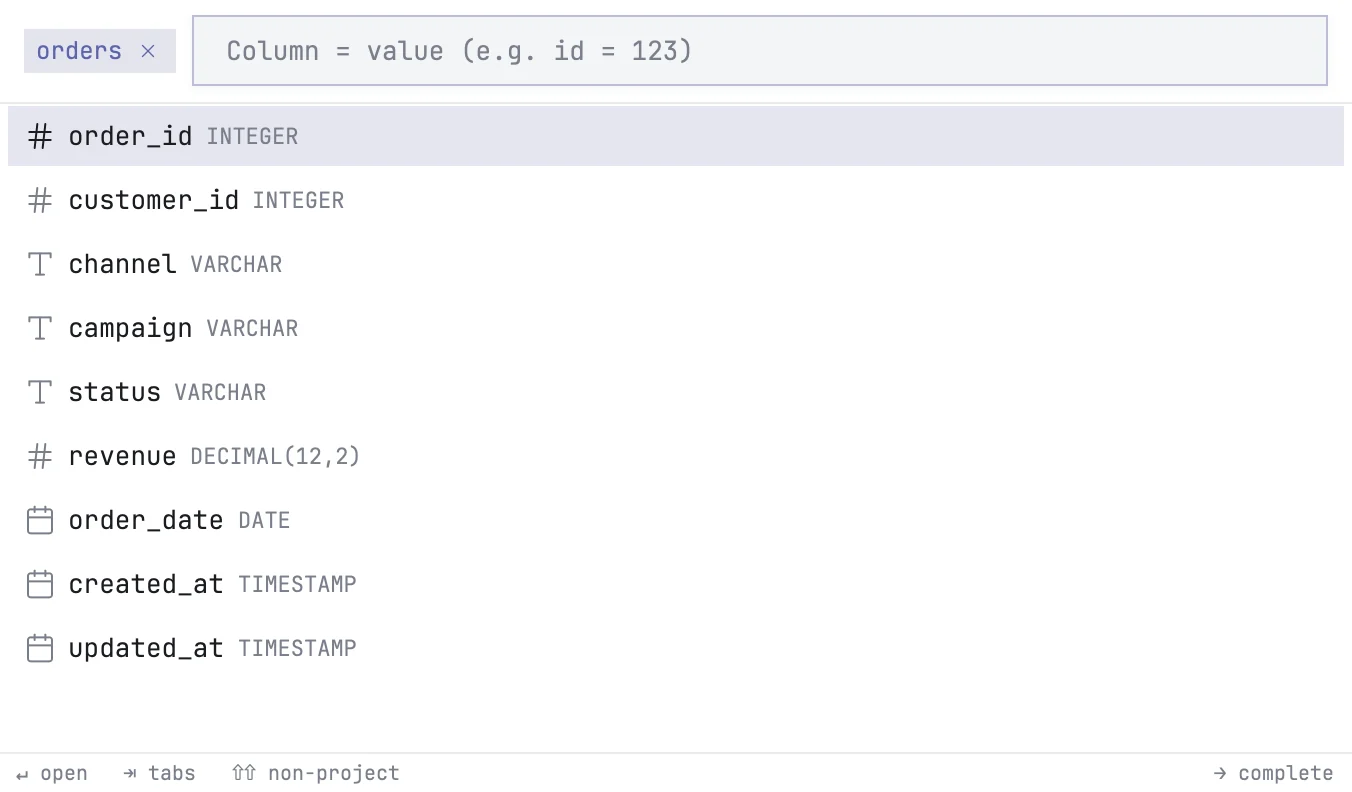
To find rows rather than a table, select a table and press →. The palette switches to filter mode: type a condition such as id = 123 or status = shipped and press ↩. mxds opens a SQL tab with that where clause and runs it. Column names complete as you type; → accepts the suggestion. ← in an empty filter goes back to the list.
Text
Searches the contents of the project's files. Three toggles next to the search box change how:
| Toggle | Does |
|---|---|
| Aa | match case |
| .* | treat the query as a regular expression |
| .gi | skip files in .gitignore (on by default) |
Narrowing the search
Start the query with a prefix to search one kind only, from any tab:
| Prefix | Searches |
|---|---|
t: |
tables and views |
c: |
columns |
conn: |
connections |
h: |
query history — ↩ runs the query again in a new tab, on its connection |
query:, view:, results: … |
actions in that category |
The action categories are file, query, view, database, app, navigation, results and chart.
In the All and Database tabs, a dot narrows by schema: staging. lists every table in staging, and staging.ord the ones whose name matches ord.
Loading data from a URL
Paste a link that starts with http:// or https:// and the palette offers one row: Load URL into memory. ↩ downloads the file and loads it into the built-in database as a table.
The row shows the address mxds will actually fetch. A link to a file's page on GitHub is changed to the raw file, and a Google Sheets link to its CSV export. A plain http:// address is marked not encrypted.
Small things
- If you type with a Russian keyboard layout by mistake, the palette also searches for what the same keys spell in English.
- Drag the bottom edge of the palette to make it taller.
- The ranking learns from what you pick. Settings → Help → Command palette → Reset ranking starts it over.