Databases
Connecting a database
Add a connection, test it, reach it through an SSH tunnel, and keep your connections in order in the Databases panel.
mxds starts with one database already connected: mxds, a built-in DuckDB that lives in memory. Everything else is a connection you add once. Connections are shared by all your projects, and their passwords and tokens are kept in the macOS Keychain.
Adding a connection
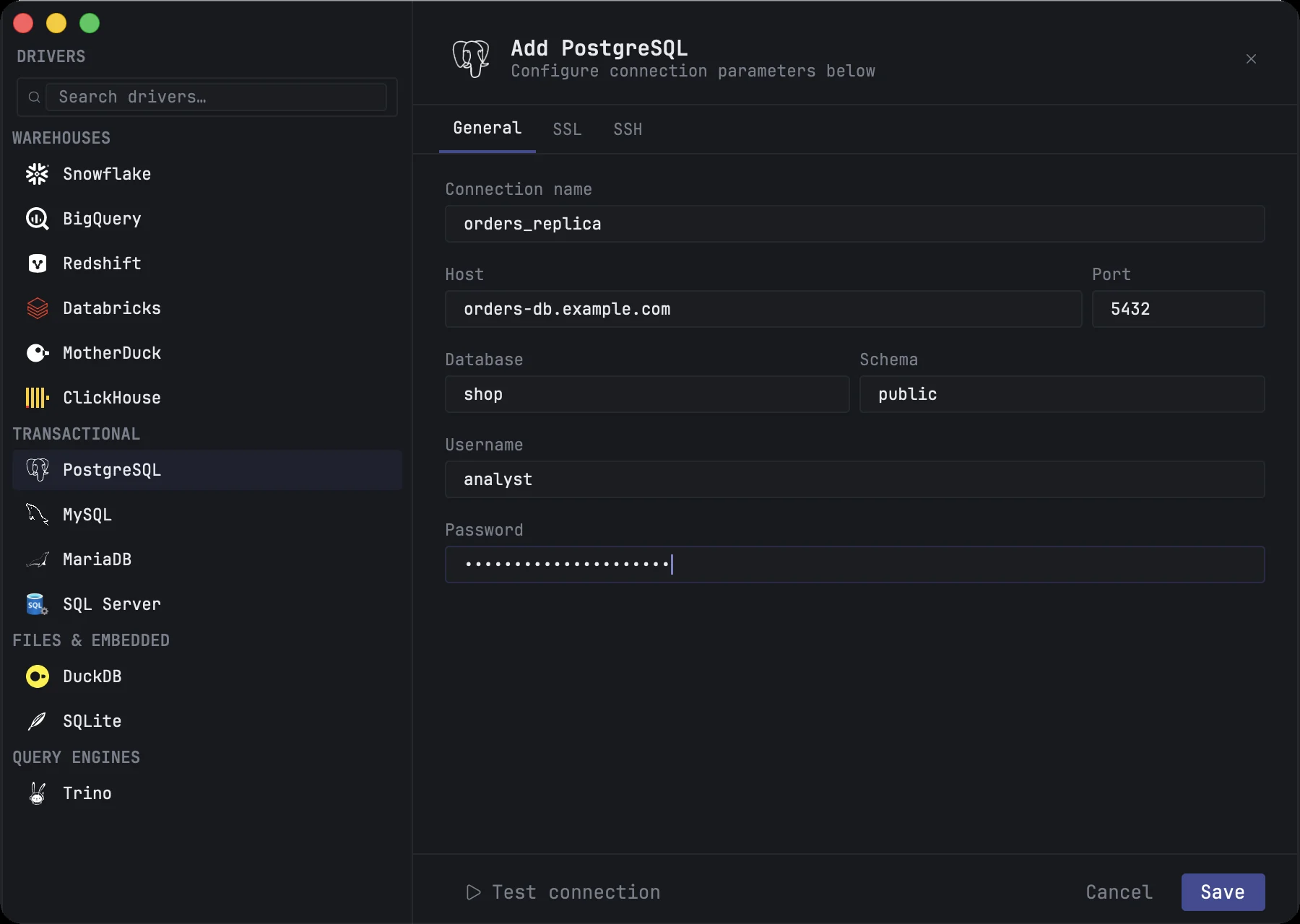
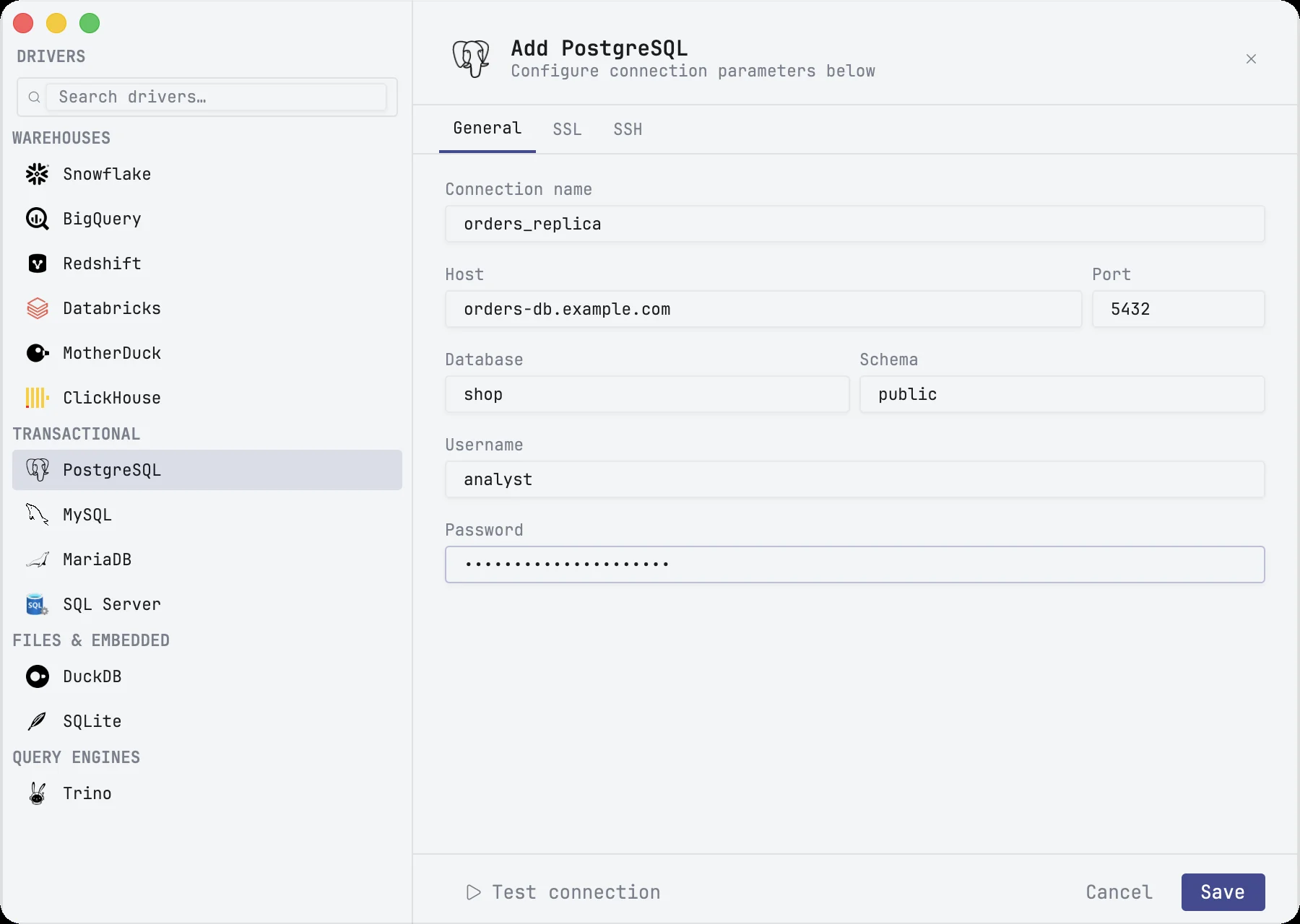
Click + at the top of the Databases panel (⌘B), or open Settings ▸ Connections (⌘,) and click Add Connection.
The form has the list of databases on the left, grouped into warehouses, transactional databases, files and query engines; type in Search drivers… to narrow it. Pick one, give the connection a name, and fill in what that database needs:
| Database | What the form asks for |
|---|---|
| PostgreSQL, Redshift | host, port, database, schema, username, password |
| MySQL, MariaDB, SQL Server, ClickHouse | host, port, database, username, password |
| Trino | host, port, catalog, schema, username, and a password or a JWT when the server needs one |
| Snowflake | account identifier, username, a password or a key pair, warehouse, database, schema, role |
| Databricks | workspace host, warehouse id, catalog, schema, personal access token |
| BigQuery | GCP project id, a service-account key file (.json) and an optional location |
| MotherDuck | MotherDuck database and your personal token |
| DuckDB, SQLite | the database file |
A new PostgreSQL connection starts with the database postgres filled in, and a Redshift one with dev — the database every server of that kind has; change it if yours is another. Grey text in an empty field is only a hint: e.g. is an example, Default: names what mxds uses when you leave the field empty, Optional means the connection works without it and Required means it does not.
For ClickHouse you can paste a whole URL such as https://host:8443 into Host; mxds takes the port and HTTPS from it. Supported databases has the details for each engine.
A DuckDB or SQLite file has an Allow writes switch. Off, the file is opened read-only and no query can change it.
The SSL tab shows only what the engine uses:
| Database | SSL tab |
|---|---|
| PostgreSQL, Redshift | SSL mode, root certificate, client certificate, client key |
| MySQL, MariaDB | SSL mode: Disabled, Preferred, Required, Verify CA or Verify identity |
| SQL Server | Encrypt, Trust server certificate |
| ClickHouse | HTTPS, Verify certificate, root certificate, client certificate, client key |
| Trino | HTTPS |
Snowflake, Databricks, BigQuery and MotherDuck always use HTTPS and have no SSL tab; DuckDB and SQLite files have none either.
Editing a connection keeps every setting the form does not show, such as one an agent made through MCP.
Testing the connection
Test connection connects with what is in the form and runs one trivial query. It shows Connected with the time it took, or Connection failed with the database's own message and a Copy button. A missing required field, such as the connection name or the host, is caught before anything is sent: the field is outlined in red with the reason under it, and the cursor is moved into it — on the SSH tab when the field is there. Testing saves nothing: the passwords you typed are not stored, and testing an edit does not replace the saved password until you click Save.
Save adds the connection to the Databases panel. It does not connect yet: a connection opens the first time you expand it or a tab runs on it.
SSH tunnels
PostgreSQL, Redshift, MySQL, MariaDB, SQL Server, ClickHouse and Trino can be reached through a bastion host. On the SSH tab, turn on Enable SSH tunneling and fill in:
- Bastion host and Port — the SSH server.
- SSH user.
- Authentication — a Private key file with an optional passphrase, a Password, or ssh-agent, which uses the keys your agent already holds.
mxds checks the bastion's host key the way ssh does. A key recorded for that host in ~/.ssh/known_hosts or in ~/.mxds/known_hosts is accepted. The first time you connect to a new bastion, its key is remembered in ~/.mxds/known_hosts; mxds never writes to ~/.ssh/known_hosts. If a known bastion presents a different key, the connection is refused before any password is sent, and the message names the file that holds the old key and the ssh-keygen -R command that removes it.
With a tunnel on, Host and Port on the General tab are resolved from the bastion, not from your Mac. If you used to run ssh -L by hand and pointed the connection at 127.0.0.1, change it to the database's real address.
A tunnel that dropped while idle, after sleep or a VPN change, reconnects by itself on the next query.
Passwords and the Keychain
Passwords, tokens, SSH passphrases and Snowflake key passphrases are stored in the macOS Keychain, never in mxds's settings files. When you edit a connection the password field is empty; leave it empty to keep the stored password, or type a new one to replace it.
Editing and removing
Right-click a connection in the Databases panel and choose Properties, or click Edit next to it in Settings ▸ Connections. A change to the tunnel or to Allow writes takes effect at once; open tabs reconnect.
To remove a connection, click Delete next to it in Settings ▸ Connections and confirm. Removing cannot be undone. It also deletes every secret the connection kept in the Keychain.
Groups and order
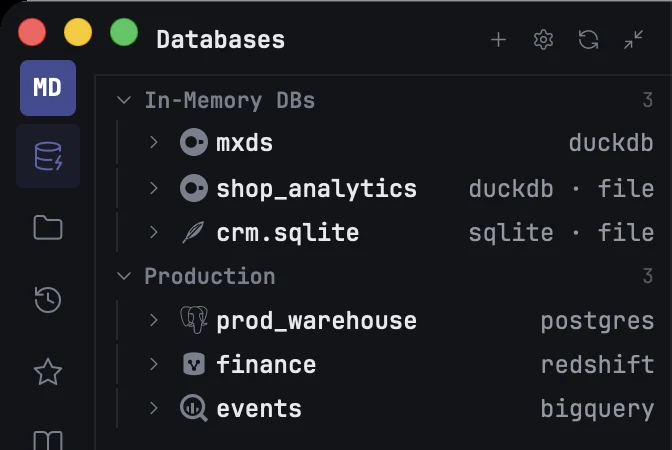
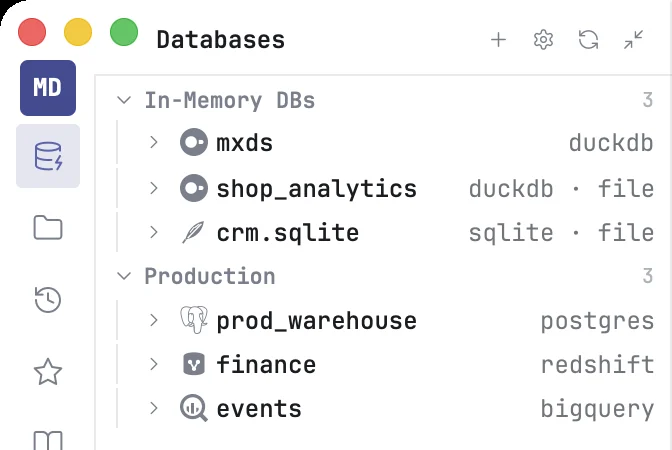
The Databases panel lists connections in your order. Drag a connection to move it; the editor's connection menu and the command palette follow the same order.
Groups keep long lists manageable. Right-click a connection, a group header or the empty space under the list and choose New group. Drag connections into a group, or use Move to group on a connection's menu. A group's menu has Rename and Delete group; deleting a group keeps its connections and puts them back where they were before.
The first group, In-Memory DBs, is always there. It holds the built-in mxds database and the local DuckDB and SQLite files you connect; it cannot be renamed or deleted.
The built-in database
mxds is a DuckDB that needs no setup. It is where imported files land, and it comes with a sample schema, jaffle_shop, with six small tables to try queries on. Turn the sample off in Settings ▸ Database ▸ Sample data.
Everything in it lives in memory, so tables you create or load there are gone when you quit mxds. It cannot be edited or removed.